5 The Dashboard
The terminal will determine the appearance and function of sub-menus in the form of keyboards and scroll menus. Please read the terminal’s user guide for information as to how to operate it.
The application is installed on the terminal supplied with the machine at the factory.
The dashboard is the view shown whilst operating and information that is important to monitor is shown here. Settings will be made in the dashboard menu, the machine mode menu or the settings menu.
Open the Väderstad application using
the icon for “E-Control”  . The terminal imports the software from
the machine’s Gateway and all important data related to machine functions,
alarms, etc. are presented in a clear and easy-to-read way on the
screen.
. The terminal imports the software from
the machine’s Gateway and all important data related to machine functions,
alarms, etc. are presented in a clear and easy-to-read way on the
screen.
Press the navigation button for the dashboard  .
.
In the submenus, click on the name of the previous menu (at the top left) to return to that menu.
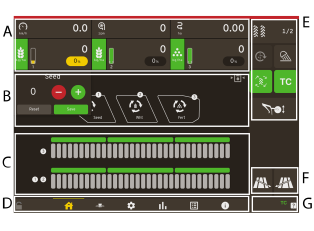
Figure 1.
Fields on the dashboard:
Display for control and monitoring, see 5.1 Display for control and monitoring.
Visualisation of the hoppers, see 5.2 The hoppers.
Section control, see 5.5 Section control
Navigation buttons that open submenus for general settings and alarms, see 5.3 Navigation Buttons
Function buttons, see 5.4 Function buttons
Section control, see 5.5 Section control
Task control Connection, See7.2.8 Task control
The three statuses for Task Control symbol are displayed as:
Green — Connected
Yellow — Reloading
Crossed out — Disconnected