12.4.1 SeedEye settings
It is important to ensure the SeedEye box is correctly connected to the machine.
Select which SeedEye box is to be connected to the machine’s left and right distributor heads by actively selecting the serial number for the SeedEye box in each field (A and B) in figure Figure 1.
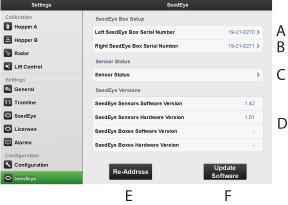
Figure 1.
The serial numbers are selected from submenus for seed in fields A and B. The current serial numbers can be found on the box label.
Press Re-Adress (E) to initiate the system.
Ensure that alarms 530, 540 and 620 do not exist. See 13 Alarms.
Go to SeedEye settings, see figure Figure 1. Press Test Sensor Connection (B) to test communication with the detectors located on the seed hoses and that the detectors are mounted in the correct order.
The LED lights on the detectors will light up blue one after another. When the rotation is completed, all of the LEDs will turn off and the sequence will begin again.
Press Test Sensor Connection (B) again to conclude the test sequence.
Ensure that alarms 530, 540 and 620 do not exist.
Update the boxes and sensors with new software by pressing the Update Software button (F), see Figure 1.
NoteThe software only needs to be updated if the corresponding alarm is active or if the software between the sensors and the respective boxes is different.
If the update is unsuccessful, repeat the software update by pressing the Update Software button (F) again.