11.1 The home screen
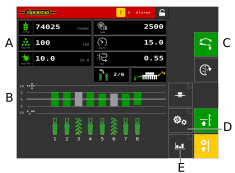
Figure 1.
The home screen
The home screen is the view shown whilst operating All the information that it is important to monitor is shown here, and all necessary settings can be made here too.
Display for control and monitoring; see11.1.1 Row units and 11.1.2 Work display.
Row units. You can switch off a row unit here (it will then be marked in grey).
Function buttons for settings when drilling; see 11.1.3 Function buttons.
Navigation buttons that open submenus for basic settings and alarms; see 11.2.1 Menu Settings.
Opens statistics page.
The location of the display and function buttons may vary between different terminals but the symbols are always the same.
If the home screen does not show all
function buttons in the same view, you have the  button, which toggles to other function
buttons.
button, which toggles to other function
buttons.
By pressing on the field for the seed application rate, you can adjust the application rate directly on the home screen. Row units can be switched OFF/ON by pressing on a row unit.
Navigation buttons
-

-
Operational settings. This is where the settings are entered for hydraulic row unit pressure. (If the machine is equipped with hydraulic row unit pressure and the function is activated.)
-

-
General settings and calibration. No settings in this menu need to be made during operation.
-

-
Alarms. Press the button to access the alarms menu. The alarms menu shows a detailed description of the nature of the alarm; alarms can also be acknowledged here. The digit in the button shows the number of active alarms. This button is only shown if there are active alarms.
-

-
Back. This button is only shown in submenus and takes you back to the previous view or the home screen.
-

-
The padlock at the top of the screen indicates whether master status has been obtained or not. A white padlock indicates that master status has been obtained, while a red padlock means that the terminal is in slave mode. A request to switch to master status can be made by clicking on the red padlock. On start-up, the terminal always defaults to slave mode.