5.1 Display for control and monitoring
Field A on the home screen. See figure Figure 1.
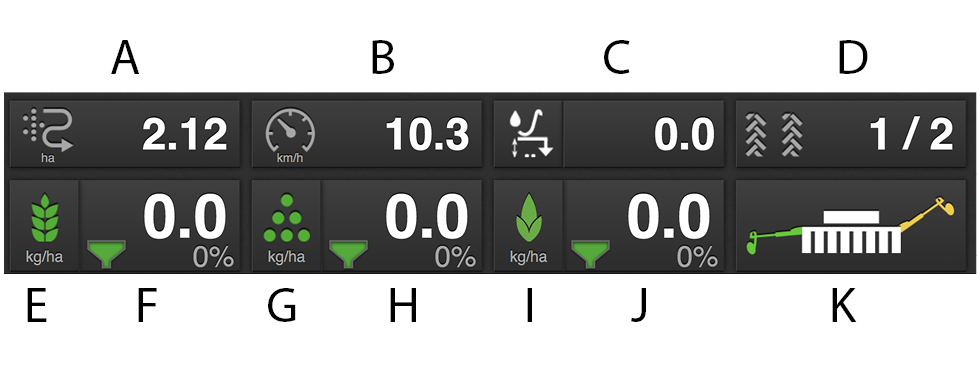
Figure 1. Work display
The following information is available on the home screen:
Area meter
Press the field to select function. The
 symbol shows the area drilled after the
latest reset; the
symbol shows the area drilled after the
latest reset; the 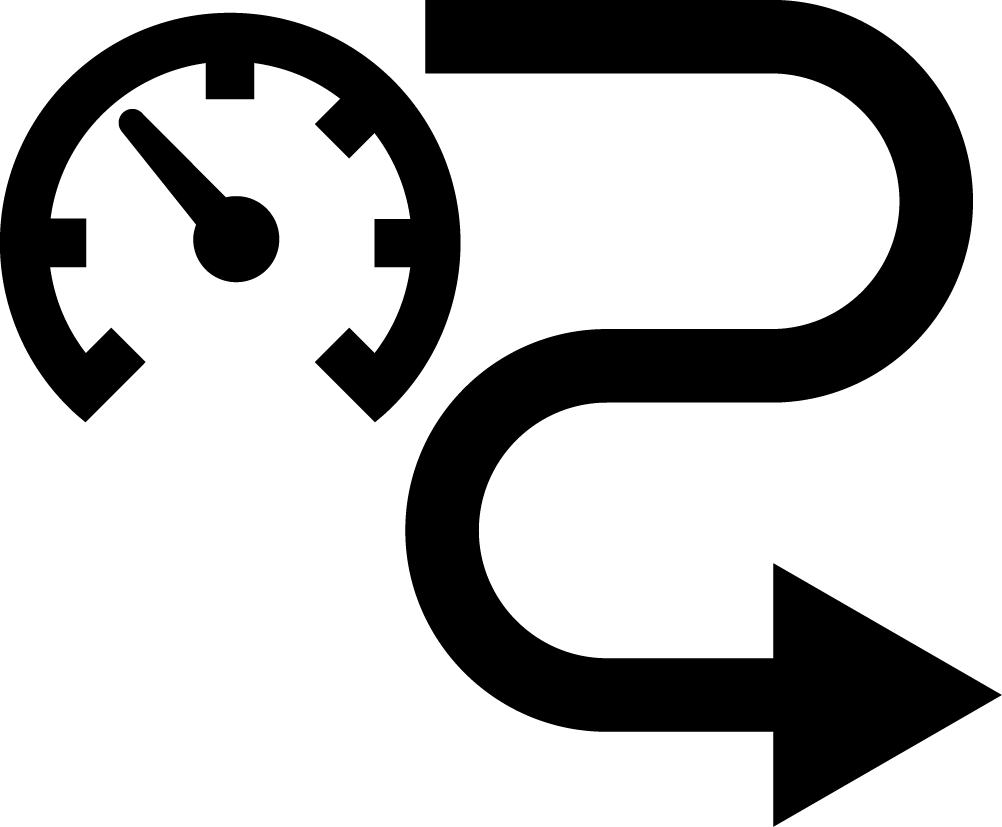 symbol shows the number of ha/hour being
drilled at the current speed.
symbol shows the number of ha/hour being
drilled at the current speed.Driving speed
Tap the field to select function. Either the driving speed or the LLS level indication is displayed here.
Seeding Depth Assistance (option) Displays the drilling depth, which can be manually adjusted from the cab, AutoCheck or automatic AutoPilot while driving.
Tramlining
See 6.4 Tramlining and 10.2 Setting tramlines.
 Press the field in the work display to
select the function.
Press the field in the work display to
select the function.Green symbol = tramlining enabled
White symbol = tramlining disabled
Red symbol = indicates a problem with tramlining
Seed On/Off seed output. Green indicates that it is On.
Seed application rate Shows the amount of seeds delivered per hectare. Pressing the seed rate field will open a pop-up window for the variable rate. See 10.1 Variable sown amount.
Fertiliser On/Off fertiliser output. Green indicates that it is On.
Fertiliser application rate Shows the amount of fertiliser delivered per hectare. Pressing the fertiliser field will open a pop-up window for the variable rate. See 10.1 Variable sown amount.
BioDrill (option) On/Off BioDrill output. Green indicates that it is On.
BioDrill (option) Shows the amount delivered per hectare for BioDrill. Pressing the BioDrill field will open a pop-up window for the variable rate. See 10.1 Variable sown amount.
Bout marker switching
Shows the current position of the bout marker arms; left, right, both or none. Press the field to switch bout marker. Bout marker switching takes place manually or automatically depending on what is selected using the
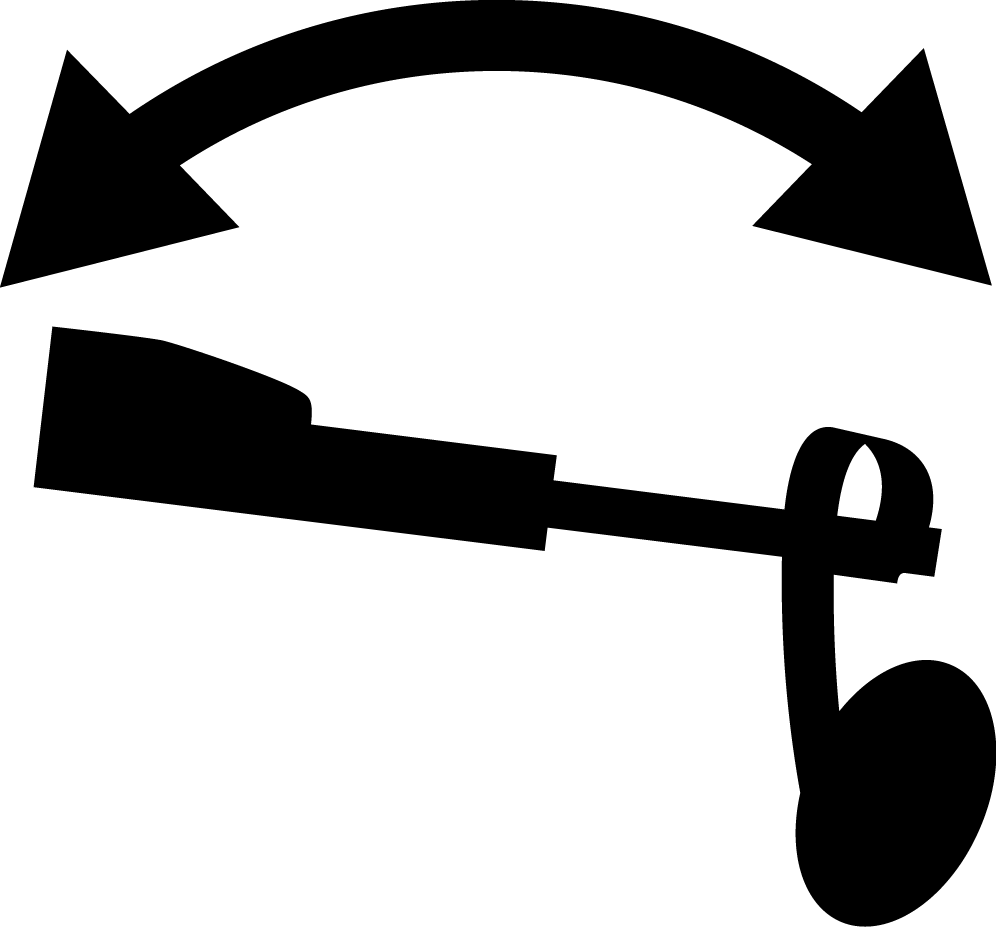 function button.