4.3 Updating software in Gateway, ISOBUS/E-Control
iOS 12 or later is required to use E-Control.
The application is common to all machine models. The search provides updates for all machine models to which E-Control has been connected. During the installation phase, Gateway detects which update is relevant for that particular device.
Be sure to download the latest version of the instruction manual when updating the software.
Software is updated by first downloading the new software to your iPad from the Internet. When the iPad then connects to the local network from Gateway, you are asked whether the new software should be installed.
Connect the iPad to a wireless network with Internet connection. Please note that the network which Gateway transmits is NOT connected to the Internet.
NoteIf the network is not shown immediately, wait for a minute or so while the iPad searches for networks.
Go the iPad home screen and press the
 icon.
icon.Select “Search for updates” when prompted.
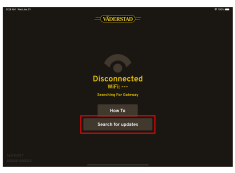
Figure 1.
The available updates will be displayed on the screen and the download will start.
The search returns updates for all machine models to which E-Control has ever been connected.
If your machine is not listed, you can toggle “Include All” in the upper right corner to search for all machine updates.
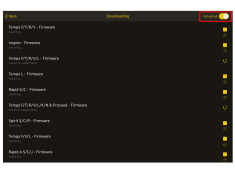
Figure 2.
To download an update, click the
 icon on the far right of that row.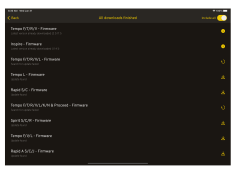
Figure 3.
A pop-up window is displayed with information about new features since the last update. Press “Download”.
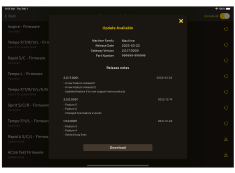
Figure 4.
A progress bar is displayed and once the download is complete, the new update is saved to the iPad. Once installation is complete, the message “Update successful” is displayed.
Switch the Wi-Fi connection back to the machine again.
If you have an older version on your machine, this window is displayed.
Press “Update Gateway with New Software” (B) if you would like to update it. If you would prefer to wait, press the X (A).
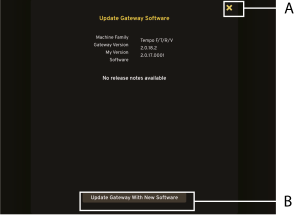
Figure 5.
The Gateway will now be updated, which will take about 5 minutes. If the update is not completed within this time: Check that the machine is connected to the Wi-Fi network. If it is, try closing the app manually.