6.4 Tramlining
For successful tramlining, it is very important to carefully consider furrow plans before starting the work.
In the tramline menu, choose whether tramlining should be activated and set the bout in which you want to place drive tracks. The symbol on the home screen shows the tramlining cycle. The first number shows which phase you are in and the second number shows the number of tramlining cycles selected in the tramlining program. It is also possible to design a tramlining program in which every bout included in the tramlining cycle is programmed individually.
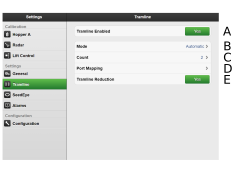
Figure 1.
A detailed description of how to lay tramlining tracks and change track width, as well as how row shut-off works, can be found in the user guide for the machine.
Select whether or not to enable tramlining.
Select “Automatic” for normal tramlining with both wheel tracks in the bout. Select the interval in field ‘C’.
Select “Custom” for more advanced programming of drive tracks.
Select the number of cycles (bouts) to be included in the tramlining program. For example, if you select 2, tramlines are laid on alternate bouts; if you select 5, tramlines are laid every 5th bout
Port Mapping, see 6.4.1 Port Mapping.
Add automatic reduction when tramlining or keep the rate the same.
Select the start value in the tramlining program by pressing the  button on the home screen and adjusting
the start value with the (+) and (-) buttons.
button on the home screen and adjusting
the start value with the (+) and (-) buttons.